For Classrooms and Makerspaces - Using LTSP to Replace PiServer and Build a Diskless Raspberry Pi Lab
I. Introduction
I previously used PiServer as the deployment solution for Raspberry Pi devices in my makerspace. It offered many advantages: no SD cards required, unified system image management, centralized student accounts, and all users’ home directories mounted on the server. Students could log in on any Raspberry Pi device and immediately access their own files.
PiServer on GitHub Although PiServer is convenient and easy to configure thanks to its graphical interface, it has not been actively maintained for quite a long time. After upgrading the server to Raspberry Pi OS Trixie, PiServer stopped functioning correctly. This forced me to look for an alternative—and that is the origin of this article.
Eventually, I found LTSP. Unlike PiServer, LTSP has no graphical interface, is less convenient to use, and is not designed specifically for Raspberry Pi. Many configurations must be modified manually, and several issues are likely to appear.
This article documents my complete deployment process, hoping it provides valuable reference for readers migrating from PiServer to LTSP.
Before you begin, I recommend reading the section [[Five: Issues and Troubleshooting]] to decide whether you want to proceed.
II. Architecture Overview
graph LR
    subgraph Internet
        WAN[Internet]
        WAN --- RA[Router A]
    end

    subgraph LAN[Classroom LAN]
	    RA --- RB[Router B]
	    RB --- SW[Switch (optional)]
        RB --- RC[Router C (optional)]

        SW --- S[Raspberry Pi Server]
        SW --- C1[Raspberry Pi Client 1]
        SW --- C2[Raspberry Pi Client 2]
        SW --- C3[Raspberry Pi Client n...]
    end
Explanation:
- Router A connects normally to the internet.
- Router B is a multi-port router. Higher bandwidth improves Pi client boot speed. This router must have DHCP disabled, so Router A should not be omitted. To avoid affecting other devices on the network, Router B should isolate the classroom into a separate LAN.
- Switch is optional. All Raspberry Pi devices must use wired Ethernet, not Wi-Fi. Add a switch if Router B does not have enough ports.
- Router C is optional, used to provide Wi-Fi if Router B does not support it.
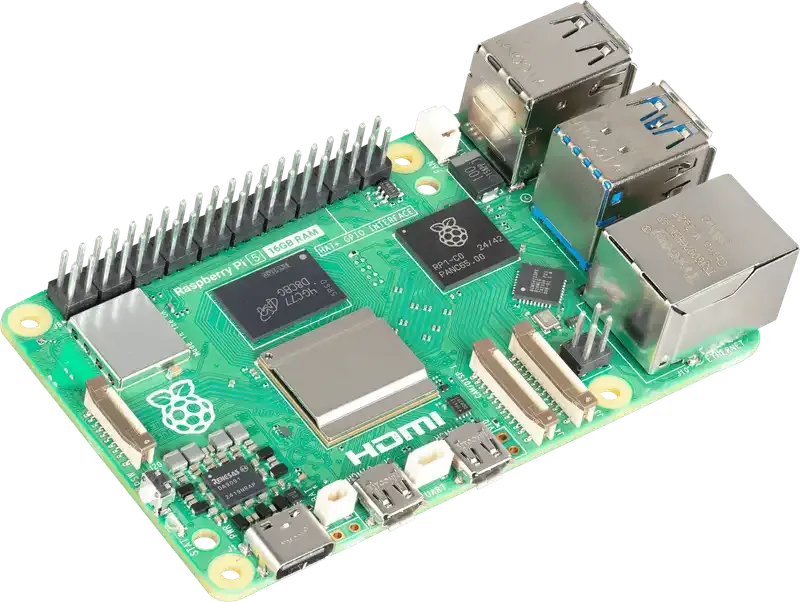
- Raspberry Pi Server should be a Pi 5 with SSD. Due to read/write speed, SD cards should not be used as server storage.
- Raspberry Pi Clients may be Pi 4/5. Pi 3 is theoretically possible but untested and requires additional configuration.
III. Preparations
Hardware
- One Raspberry Pi 5 as the Server
- Raspberry Pi M.2 HAT+ expansion board and SSD
- Raspberry Pi devices for clients with Network Boot configured
- Routers and switches (see Section II)
Software
- Install Raspberry Pi OS Trixie 64-bit on the Server. Prefer downloading the image beforehand and flashing via Raspberry Pi Imager. Keeping the downloaded image is useful later when preparing the client chroot.
- Download the OS image for Raspberry Pi Clients (same Raspberry Pi OS Trixie 64-bit).
Network
- Set Router B static IP to 192.168.5.1. You may choose another, but all commands later will assume this address.
- Configure the Server network manually: IPv4 Manual → add: 192.168.5.2 | 24 | 192.168.5.1, DNS: 192.168.5.1
- Disable DHCP on Router B.
- All Raspberry Pi devices must use Ethernet
IV. Deployment Steps
The following steps extend the official LTSP documentation: https://ltsp.org/docs/installation/raspios/
1. Switch to root
Run:
sudo -i2. Add LTSP package repository
wget https://ltsp.org/misc/ltsp-ubuntu-ppa-focal.list -O /etc/apt/sources.list.d/ltsp-ubuntu-ppa-focal.list
wget https://ltsp.org/misc/ltsp_ubuntu_ppa.gpg -O /etc/apt/trusted.gpg.d/ltsp_ubuntu_ppa.gpg
apt update
3. Install LTSP server packages
apt install --install-recommends ltsp ltsp-binaries dnsmasq nfs-kernel-server openssh-server squashfs-tools ethtool net-tools epoptes
gpasswd -a administrator epoptes
Replace administrator with your admin username.
If not using the PPA, replace ltsp-binaries with ipxe.
Package explanations: ltsp — core LTSP components ltsp-binaries — iPXE and memtest binaries dnsmasq — TFTP, (proxy) DHCP, DNS nfs-kernel-server — exports virtual disk images via NFS openssh-server — enables SSHFS authentication for /home ethtool / net-tools — optional optimization (disable Ethernet flow control) epoptes — classroom monitoring; gpasswd grants permission
4. Prepare the Client Chroot
Copy the downloaded Raspberry Pi OS image to the server and extract:
xz -dk 2025-11-24-raspios-trixie-arm64-full.img.xz(Use your own filename.)
Install optional utility:
apt install timeCreate chroot directory:
mkdir -p /srv/ltsp/raspiosMount the image and copy root filesystem:
losetup -rP /dev/loop8 2025-11-24-raspios-trixie-arm64-full.img
mount -o ro /dev/loop8p2 /mnt
time cp -a /mnt/. /srv/ltsp/raspios
umount /mnt
Remove boot folder (required):
rm -r /srv/ltsp/raspios/bootCopy boot partition:
mount -o ro /dev/loop8p1 /mnt
cp -a /mnt/. /srv/ltsp/raspios/boot/
umount /mnt
losetup -d /dev/loop8
Then configure the chroot:
cd /srv/ltsp/raspios
systemctl mask --root=. dhcpcd dphys-swapfile raspi-config resize2fs_once NetworkManager-wait-online
echo 'proc /proc proc defaults 0 0' >./etc/fstab
echo 'ip=dhcp root=/dev/nfs rw nfsroot=192.168.5.2:/srv/ltsp/raspios,vers=3,tcp,nolock console=serial0,115200 console=tty1 elevator=deadline fsck.repair=yes rootwait quiet splash plymouth.ignore-serial-consoles modprobe.blacklist=bcm2835_v4l2' >./boot/cmdline.txt
5. Prepare the Server
dnsmasq
Generate default config:
ltsp dnsmasqModify /etc/dnsmasq.d/ltsp-dnsmasq.conf:
dhcp-range=192.168.5.101,192.168.5.200,12h
dhcp-option=option:dns-server,192.168.5.1
dhcp-option=option:router,192.168.5.1

# Add all client MAC addresses here (one per line)
dhcp-mac=set:rpi,d8:3a:*:*:*:*
ltsp.conf
Generate:
install -m 0660 -g sudo /usr/share/ltsp/common/ltsp/ltsp.conf /etc/ltsp/ltsp.confAdd:
[server]
RPI_IMAGE="raspios"
NFS_HOME=1

[clients]
FSTAB_HOME="server:/home /home nfs defaults,nolock 0 0"
LIGHTDM_CONF="greeter-hide-users=true"
Initialization
ltsp kernel raspios
ltsp initrd
ltsp nfs
6. Boot in NFS_RW Mode
Enable NFS read-write mode:
echo '/srv/ltsp/raspios *(rw,async,crossmnt,no_subtree_check,no_root_squash,insecure)' >/etc/exports.d/ltsp-raspios.exports
exportfs -ra
On a client, add LTSP PPA and install:
apt install --install-recommends ltsp epoptes-clientEdit hosts:
192.168.5.2 serverObtain certificate:
sudo epoptes-client -cNow install input methods, configure locale, keyboard layout, etc.
Shutdown when finished.
7. Switch to LTSP Mode
Overwrite kernel command line:
echo 'ip=dhcp root=/dev/nfs nfsroot=192.168.5.2:/srv/ltsp/raspios,vers=3,tcp,nolock init=/usr/share/ltsp/client/init/init ltsp.image=images/raspios.img console=serial0,115200 console=tty1 elevator=deadline fsck.repair=yes rootwait quiet splash plymouth.ignore-serial-consoles modprobe.blacklist=bcm2835_v4l2' >/srv/ltsp/raspios/boot/cmdline.txtBuild the read-only image:
ltsp image raspios --mksquashfs-params='-comp lzo'8. Add Users
Add users on the server:
adduser user1Rebuild components (image rebuild not required):
ltsp kernel raspios
ltsp initrd
ltsp nfs
V. Issues and Troubleshooting
Below are some issues I encountered and their solutions. Review this section before deciding whether LTSP suits your needs.
Issue 1: Scratch crashes when using GPIO extensions
Description
When using GPIO-related extensions in Scratch (e.g., Simple Electronics → When button 0 is pressed), Scratch may freeze and turn white.
Solution
The logged-in user is missing required groups.
Check group membership:
id userYou should see:
... 997(gpio) ...If not, add:
sudo usermod -aG gpio,i2c,spi usernameThen rebuild LTSP components.
Issue 2: Epoptes does not start
Description
Launching epoptes on the server shows no response.
Solution
Run:
epoptesIf you see:
ModuleNotFoundError: No module named 'distutils'It is caused by Python version incompatibility. Edit:
sudo nano /usr/lib/python3/dist-packages/epoptes/ui/gui.pyReplace all occurrences of pipes with shlex (two locations).
Save and exit. Epoptes should now work.
Issue 3: Epoptes cannot broadcast screens
Description
Server cannot broadcast its screen or view client screens. The bundled TigerVNC 1.15.0 does not support Raspberry Pi’s Wayland. In theory, TigerVNC 1.60.0 beta should fix this, but not tested.
Issue 4: Client boot stuck at wayvnc-control.service
Description
Clients may hang on some system services during boot (e.g., wayvnc-control.service, cloud-init.service). Boot eventually succeeds but takes several minutes. This is not caused by network speed. I have not attempted masking these services due to possible side effects.